Getting Started with Nitra Reception
Last updated: August 6, 2026
Nitra Reception is Nitra's AI phone assistant for your practice. Before your team can use the Reception dashboard, a practice administrator must review and accept the Nitra Reception service agreement one time. This article walks through accepting the agreement, what your team sees until you do, where to find the agreement afterward, and how to control which roles can access Reception.
Accepting the service agreement (administrators)
The first time an administrator opens Reception from the left sidebar, a full-screen agreement appears over the dashboard. You can't dismiss it, click outside it, or use the dashboard until it's accepted.
In the left sidebar, click Reception.
Read the Nitra Reception Service Agreement. Scroll the document to the bottom — the Scroll to the bottom to continue prompt stays on screen until you reach the end.
Check the box confirming that, by clicking Accept & Continue, you agree to the Nitra Master Service Agreement Terms and Conditions, Business Associate Agreement, and Order Form shown in the box above.
Click Accept & Continue. The button stays disabled until you've scrolled to the bottom and checked the box. Once you accept, the agreement closes and the Reception dashboard loads.
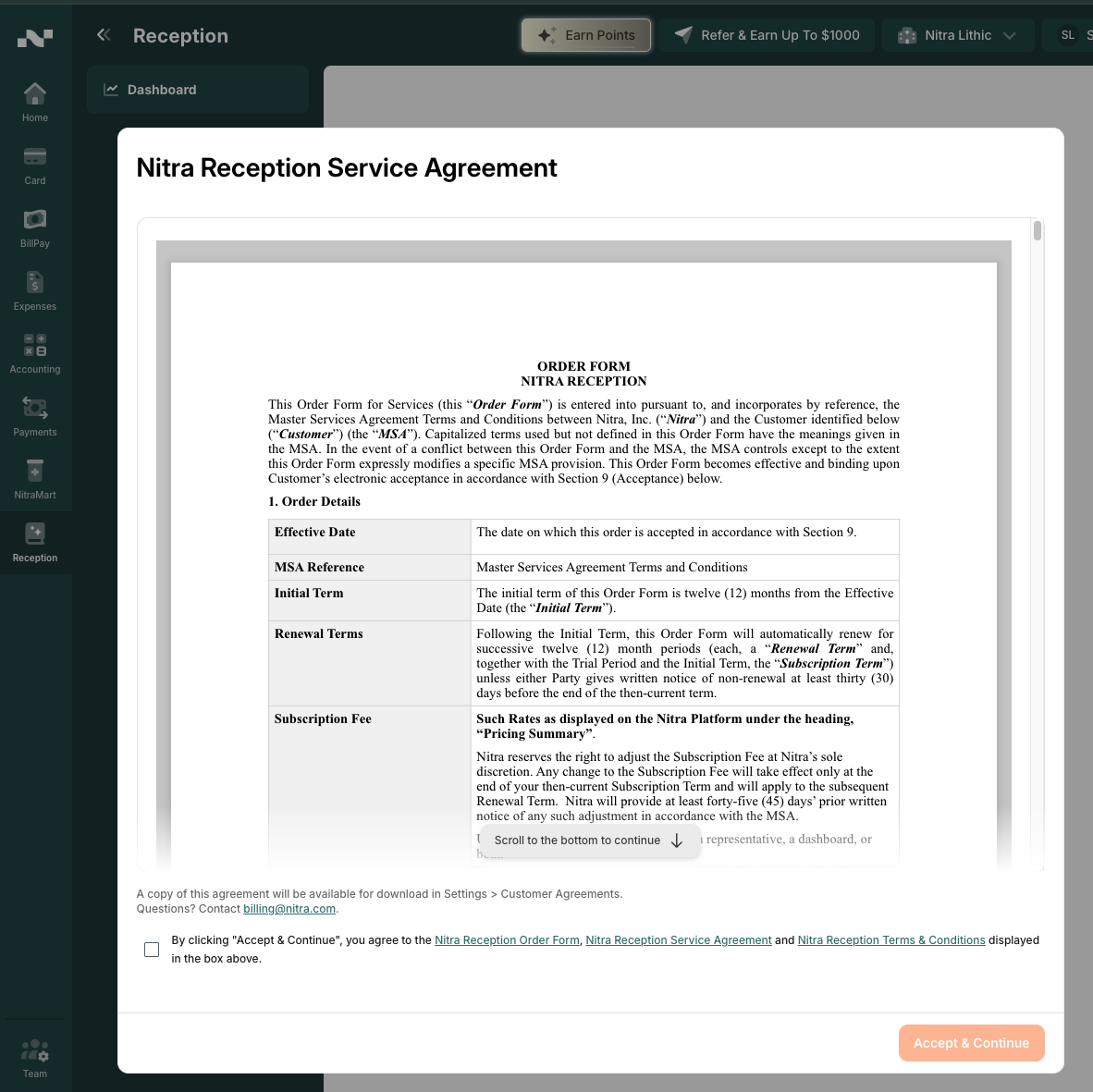
A few things to know:
You only need to accept once for the whole practice. After any administrator accepts, the agreement is cleared for everyone at your practice. [TODO: confirm — org-wide acceptance clears the prompt for all members.]
A copy of the agreement is available anytime under Settings → Customer Agreements (see below).
Questions about the agreement or billing? Contact billing@nitra.com.
What your team sees before you accept
If a team member who isn't an administrator opens Reception before the agreement has been accepted, they see a Waiting for your administrator message instead of the dashboard:
A practice administrator needs to review and accept the Nitra Reception service terms before your team can use the dashboard. Ask an admin at your practice to log in and complete this step — once they've accepted, you can sign in as usual.
Their only option is Back to home page. Once an administrator accepts the agreement, team members can use the Reception dashboard normally.
Finding and downloading the agreement later
Your accepted Nitra Reception agreement is always available to review and download.
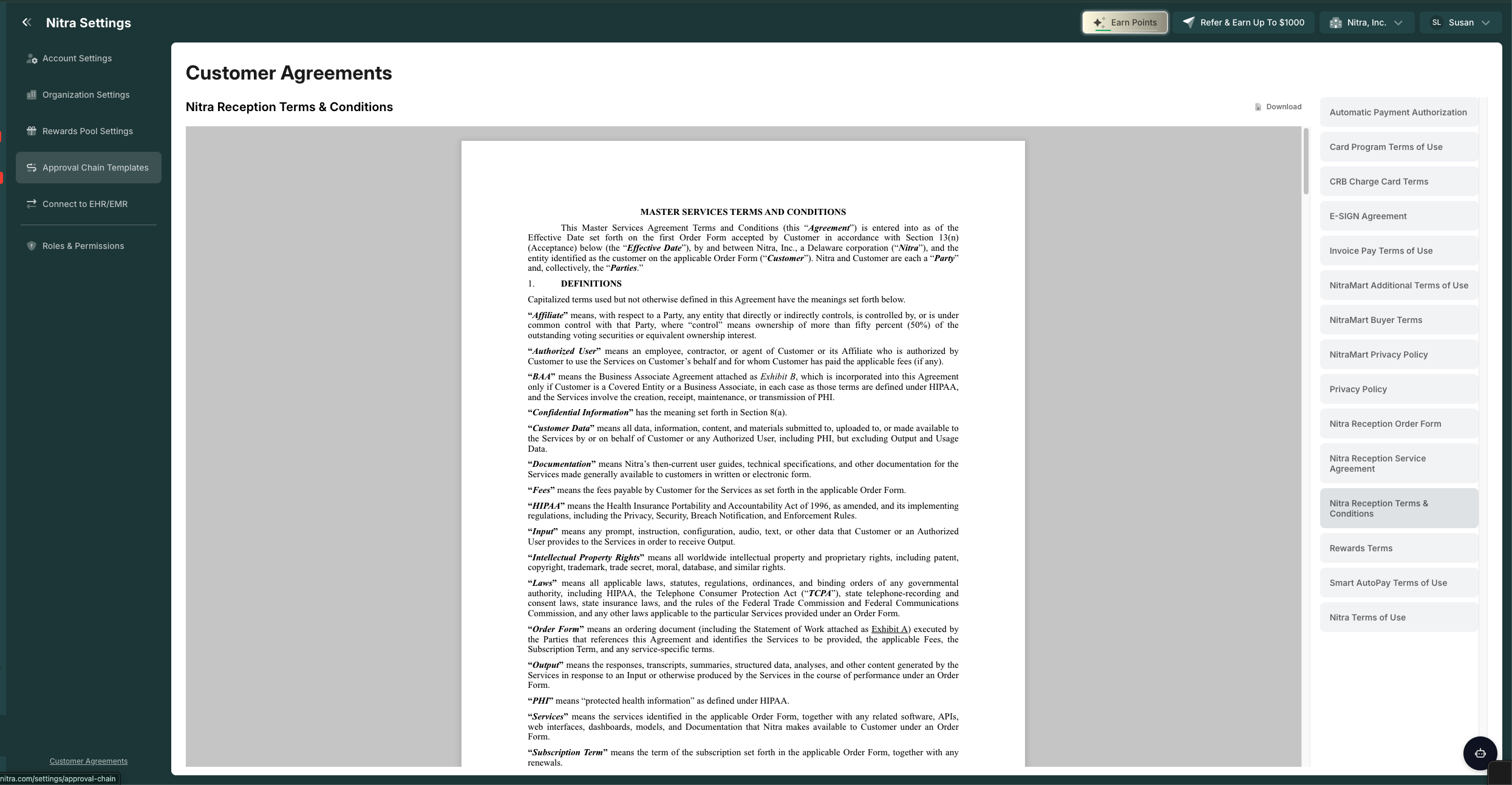
Go to Settings → Customer Agreements.
In the list of agreements on the right, select the Reception entries — Nitra Reception Business Associate Agreement, Nitra Reception Terms & Conditions, and Nitra Reception Order Form.
The selected agreement opens in the document viewer. Click Download in the top-right corner to save a copy.
Related Articles