Applying for a Nitra Card
Last updated: August 6, 2026
Applying for a Nitra Card takes just a few minutes. You'll create your account, verify your email and phone number, tell us about your practice, add the people who own or run it, link a bank account, and submit for review. This article walks you through every screen so you know exactly what to expect.
The application has four parts:
Create your account — your name, contact details, and a password
Verify your account — confirm your email and phone number
Tell us about your business (KYB) — business details, owners, representative, and bank account
Review and submit — check everything and send your application for review
Before you begin
Have the following ready so you can complete the application in one sitting:
Your practice's legal business name and Employer Identification Number (EIN)
Your business address and phone number
The name, date of birth, home address, and Social Security Number for each owner and for the person who represents the business
Access to your business bank account (or its login) so you can link it
Income statement and balance sheet*
*Only required if you are requesting $500,000 or more in monthly credit limit
1. Create your account
From the Get Started screen, work through the five-step sign-up wizard. If you already have a Nitra account, use the log-in link at the bottom instead.
Step 1 of 5 — Contact information. Enter your legal First Name and Last Name, Email, Phone Number, and Date of Birth.
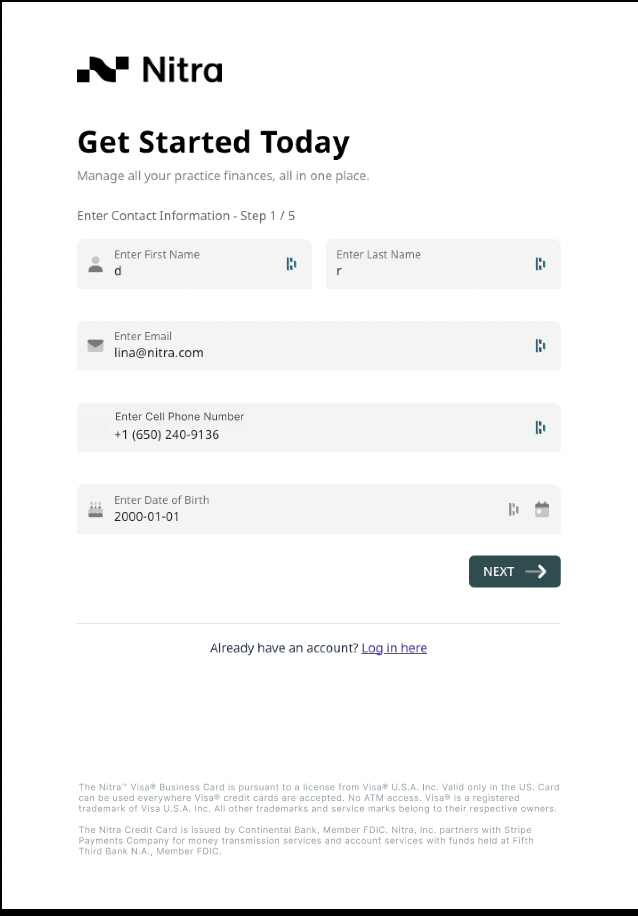
[Screenshot — Get Started, Contact information, Step 1 of 5]
Step 2 of 5 — Create a password. Choose a password that meets the requirements shown on screen (minimum length, upper- and lower-case letters, a number, and a special character), then re-enter it to confirm. The requirements update live as you type.
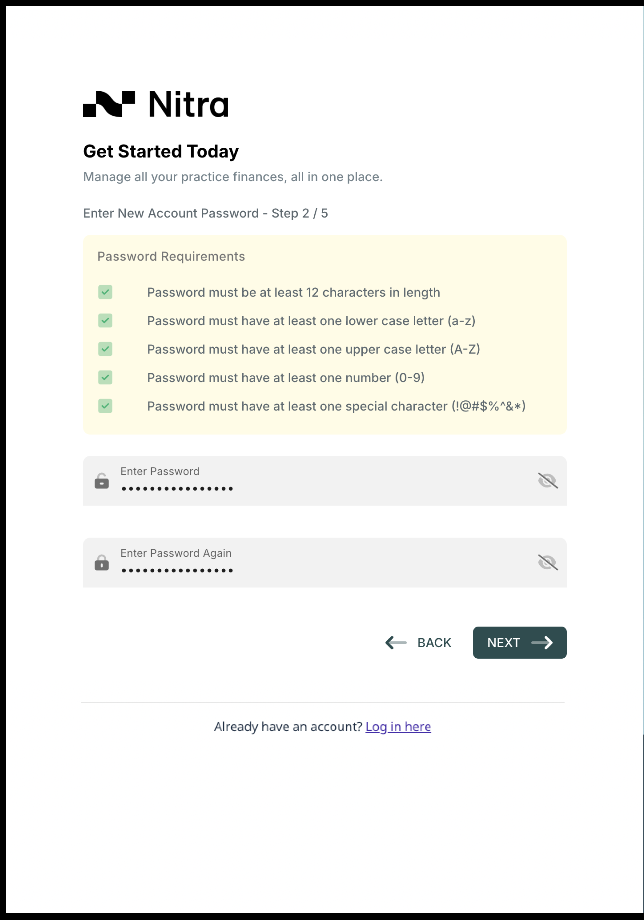
[Screenshot — Create password with live requirements, Step 2 of 5]
Step 3 of 5 — Organization details. Enter your Organization Name, organization Email, and organization Phone Number.
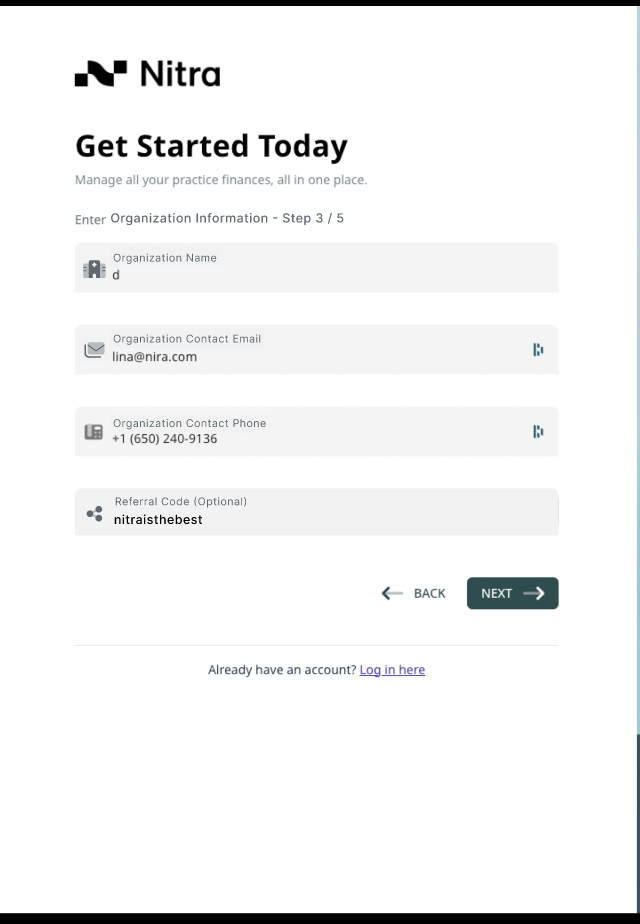
[Screenshot — Organization details, Step 3 of 5]
Step 4 of 5 — Organization address. Start typing your business address and choose it from the autocomplete suggestions. If your address isn't listed, enter it manually.
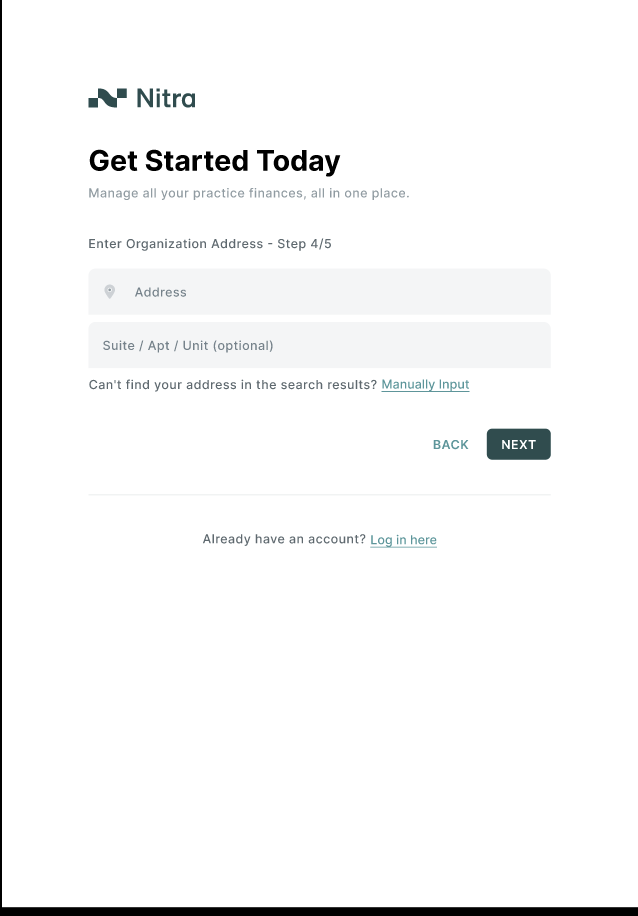
[Screenshot — Organization address, Step 4 of 5]
Step 5 of 5 — Review and agree. Review your account and organization details, then agree to the Terms of Service, Card Program Terms of Use, Privacy Policy, E-Sign Agreement, Cross River Bank's Charge Card Terms, and Stripe Connect Account Agreement. Submit to create your account — you'll be signed in automatically and taken to verification.
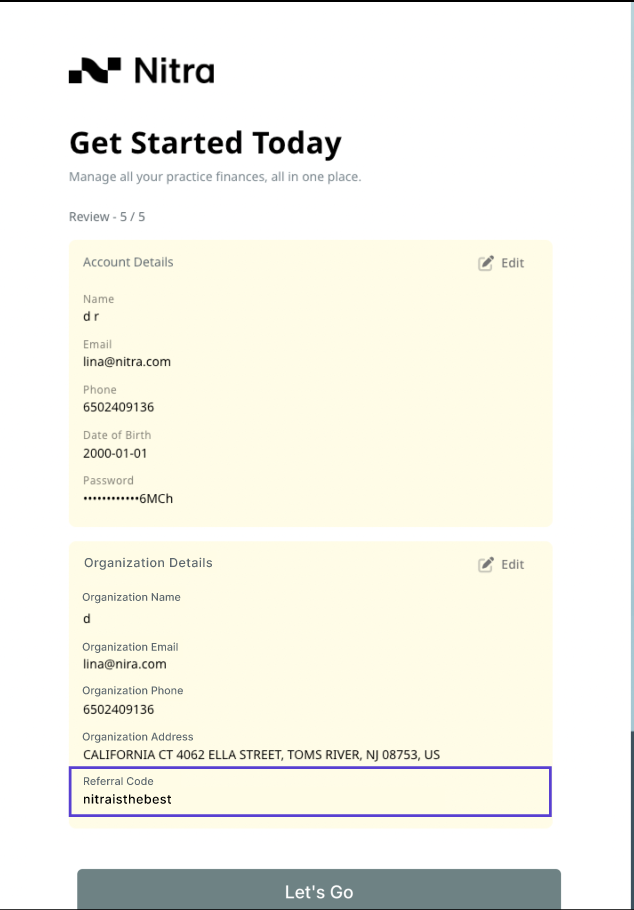
[Screenshot — Review details and agreements, Step 5 of 5]
2. Verify your account
Verification confirms you control both your email address and your phone number. There are two steps.
Verify Email. We send a 6-digit confirmation code to the email address you registered. Enter it to continue. If it doesn't arrive, check your spam folder, or use Change Email to send the code to a different address.
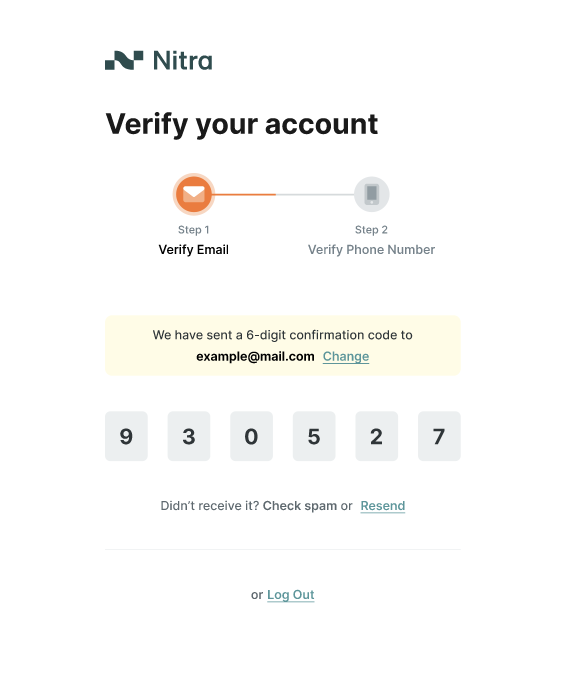
[Screenshot — Verify Email, Step 1 of 2]
Verify Phone Number. We send a 6-digit code by SMS to your registered phone number. Enter it to continue. You can use Resend SMS if it doesn't arrive, or Change Phone Number to use a different number.
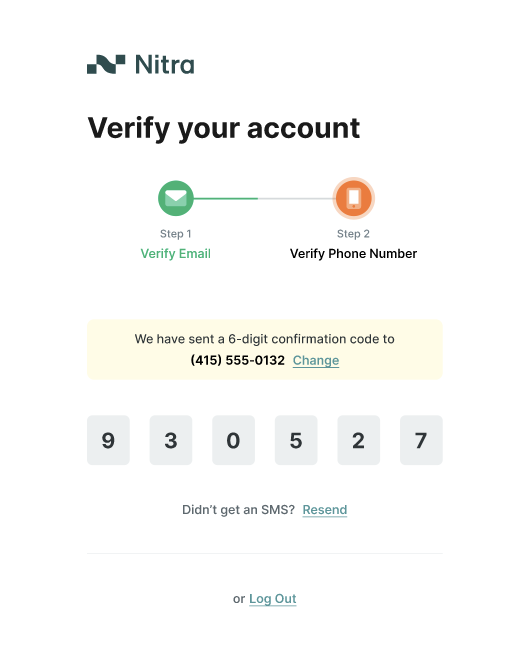
[Screenshot — Verify Phone Number, Step 2 of 2]
Once both are confirmed, you'll see "Your account has been confirmed, redirecting…" and Nitra takes you into the business verification steps.
3. Tell us about your business
This section is called Know Your Business (KYB). Nitra is required to collect business and ownership details to verify your organization and meet financial regulations. A progress bar at the top shows how far along you are, and you can move back to earlier screens to make changes.
3.1 Business information
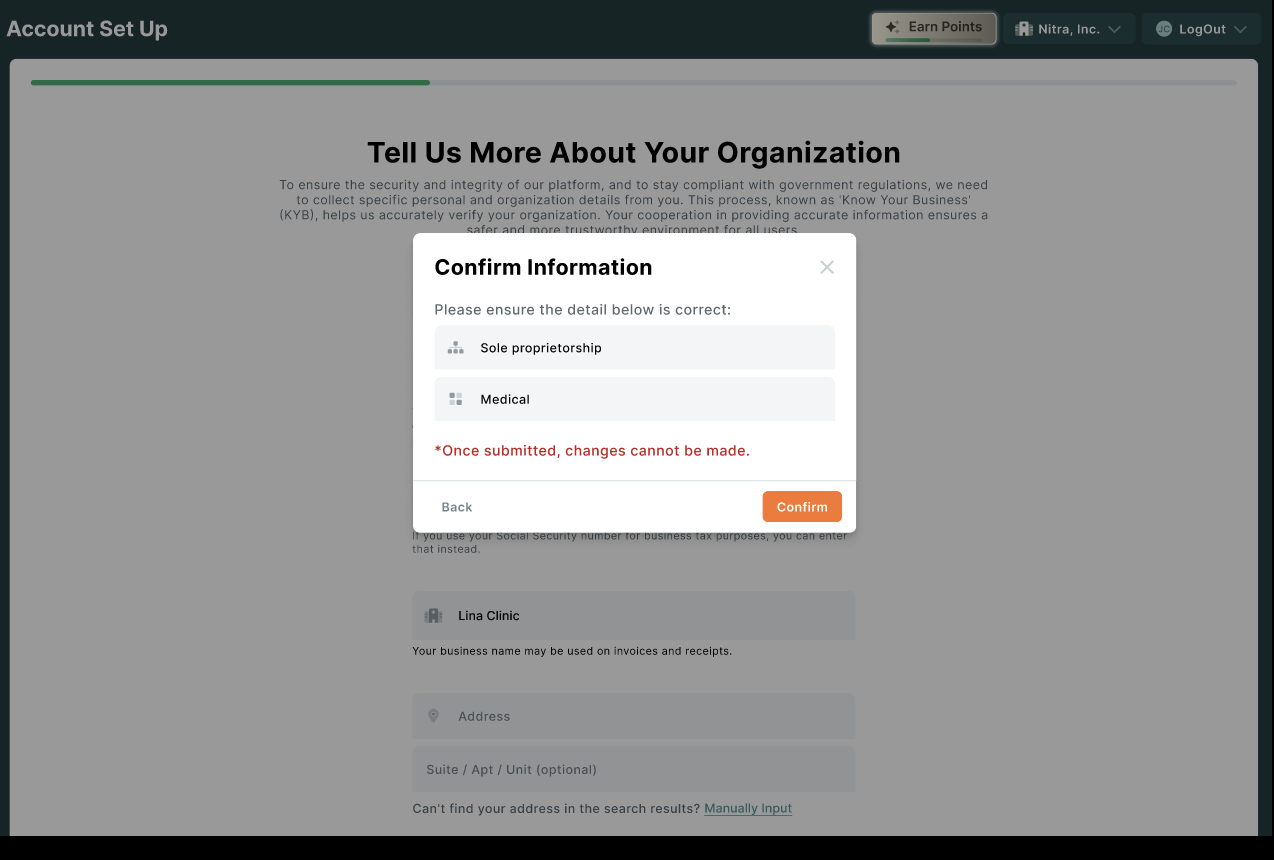
On the Tell Us More About Your Organization screen, provide your business details, including:
Business Structure (for example, sole proprietorship, partnership, or corporation)
Legal Business Name and Business Name (your DBA, if different)
Employer Identification Number (EIN)
Registered Business Address and Business Phone Number
Industry and Medical Specialty
Business website and a short business description
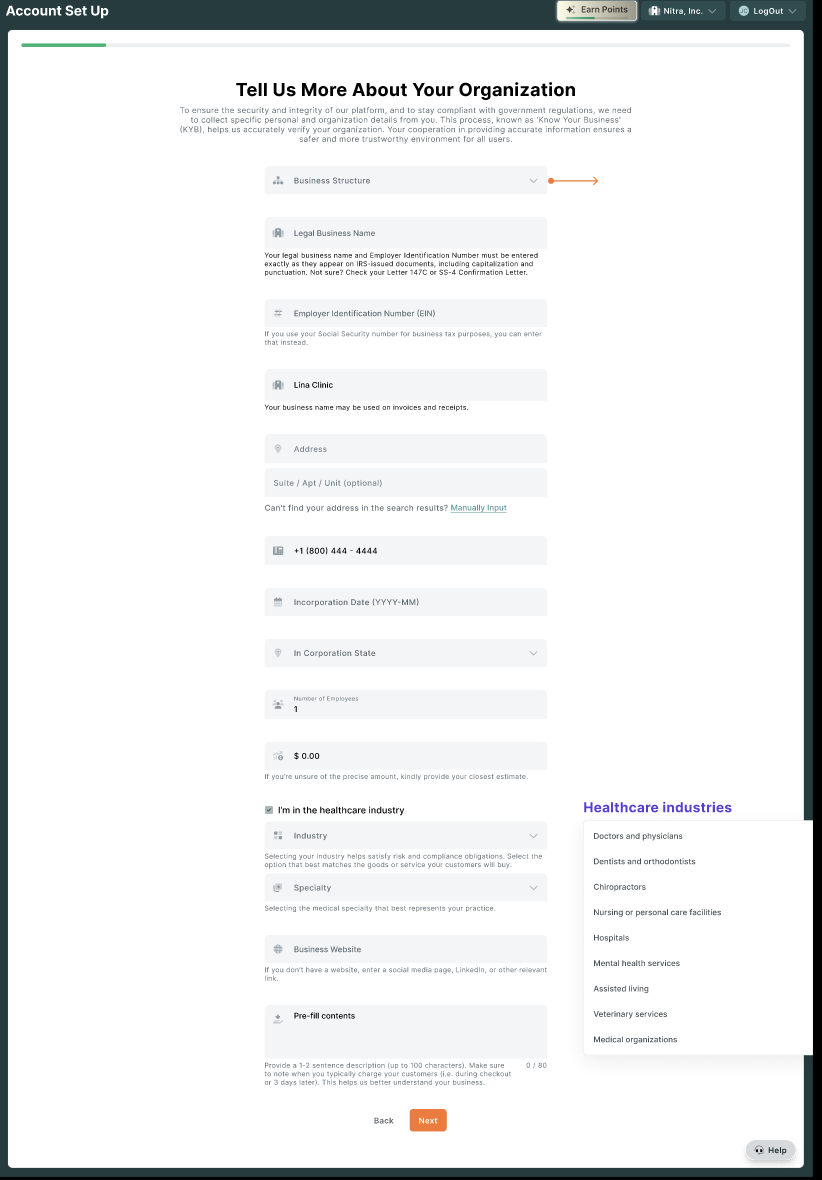
[Screenshot — Tell Us More About Your Organization (KYB business form)]
Some entries can't be changed once submitted, including your Business Structure, EIN, and Industry. Double-check these before you continue.
3.2 Add owners, executives, and your representative
Nitra collects details for the people who own or control your business. For each individual you'll provide their legal name, email, job title, nationality, date of birth, home address, phone number, and Social Security Number, and assign one or more roles:
Owner — an individual who owns 25% or more of the company and/or exercises significant control over it
Executive — an executive or senior manager with significant responsibility for managing or controlling the business
Account representative — the person who represents the business on the application
At least one person must be both the account representative and an owner or executive. When you add owners, the ownership you enter must be at least 1% and total no more than 100%.
You'll be asked "Are you the person who represents this business?" on the Provide Details for the Business Representative screen — if that's you, your details can be pre-filled from your account.
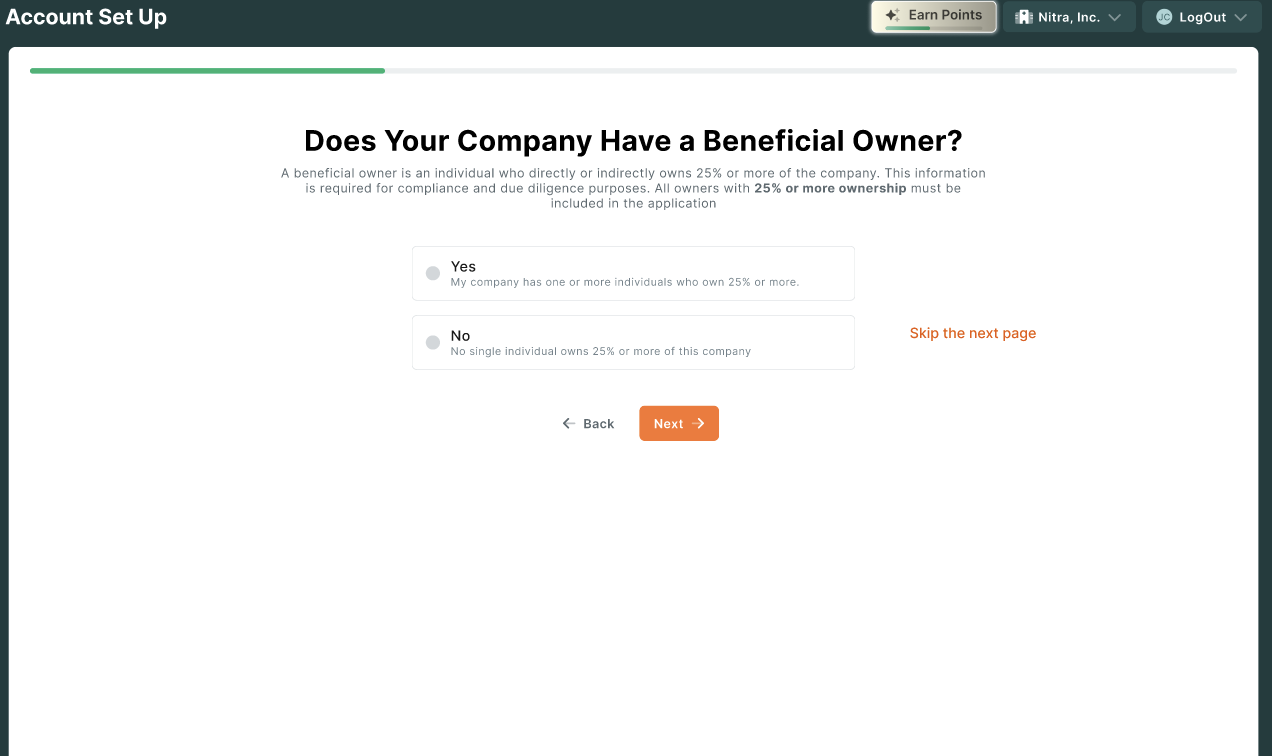
[Screenshot — Provide Details for the Business Representative]
Why Nitra asks for a Social Security Number: Nitra is required to collect it by federal law. Under the 2001 USA PATRIOT Act, financial institutions must verify and record the SSN to confirm identity. Your SSN is not stored after verification is complete.
3.3 Link your bank account
On the Add Bank Account screen, link your business bank account. Linking your account lets Nitra accurately underwrite your business. You can link it two ways:
Instantly through Stripe Financial Connections — sign in to your bank and authorize the connection. It's encrypted and can be disconnected at any time.
Manually — a microdeposit of $0.01 with a 6-digit code arrives in your account within 1–2 business days. Enter the code to verify the account. (For some banks, you may instead receive two small deposits of varying amounts under $1.00.)
For certain banks, once your application is approved, Nitra may ask you to add the account a second time for compliance and security purposes.
[Screenshot — Add Bank Account with Stripe Financial Connections and manual options]
3.4 Review and submit
On the Review Your Business Information screen, take a moment to check everything before submitting:
Business Details — your company name and address
Management and Ownership — each individual, tagged as Account representative, Owner, and/or Executive
Bank Account — the account you linked
You can Edit, Remove, or Add Individual from this screen if anything needs to change. When everything looks right, submit your application. If any required information is missing, Nitra highlights what still needs attention.
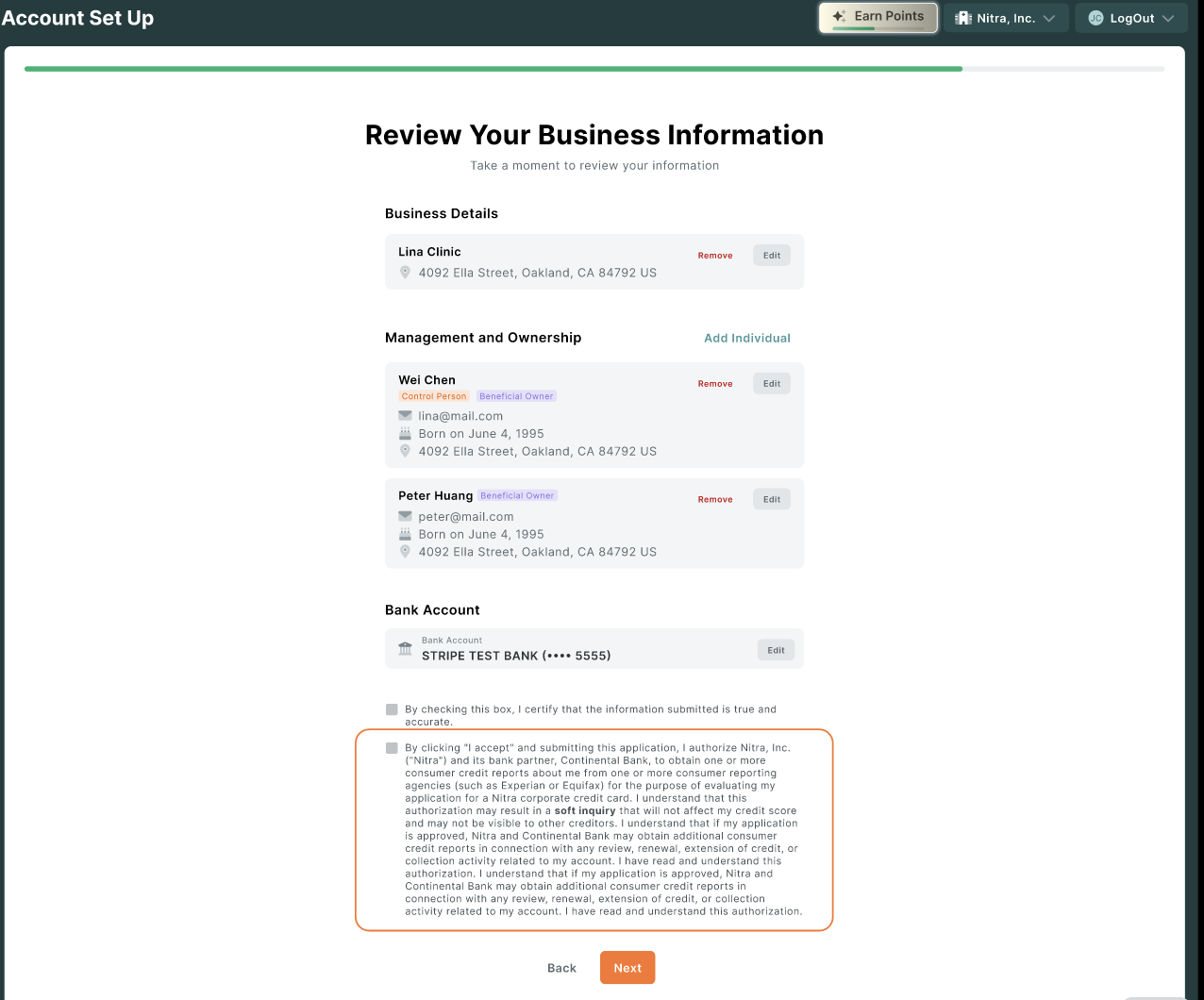
[Screenshot — Review Your Business Information]
4. What happens after you submit
After you submit, your application goes into review. You'll see a status while Nitra verifies your business and ownership information; this usually takes up to one business day. Every application is reviewed by Nitra's finance team, and if anything else is needed, your Nitra contact will reach out.
Once you're approved, you'll get your assigned credit limit and card shipping details, and you'll have full access to the Nitra platform — Card, BillPay, Payments, Accounting, Expenses, NitraMart, Rewards, and Roles & Permissions. Your virtual card is available right away, and you can use your physical card as soon as it arrives.
Related Articles